
Amazon Kindle Direct Publishing, usually shortened to KDP, gives writers a direct route to Kindle ebooks and printed paperbacks without upfront listing fees.
You upload your files, enter book details, choose pricing, and Amazon handles fulfillment for print orders. Titles are usually reviewed and published within 24 to 72 hours, according to Kindle Direct Publishing.
The platform looks simple on the surface, yet a lot of first-time authors get stuck, delayed, or quietly lose money because small setup decisions were rushed.
Today, we prepared a full walkthrough of the real KDP flow, including the details that decide whether your book looks professional, links properly, and pays you correctly.
What To Prepare Before Opening KDP
A smooth setup begins long before clicking “Create Book.”
Lock In Your Core Book Details
Decide and finalize:
- Title and subtitle exactly as they will appear publicly
- Author name and any contributors
- Series name and volume number if relevant
- Edition notes if planning later revisions
- Front and back matter, such as copyright page, dedication, acknowledgements, optional author note, newsletter link, and “Also by” list
KDP expects the title, subtitle, author name, series info, and ISBN inside your manuscript to match the metadata you enter during setup. Mismatches can block format linking and trigger quality warnings.
Plan Your Covers
Ebook and paperback covers are not interchangeable.
- Kindle ebook uses a single front cover image
- Paperback requires a full wrap, which includes back cover, spine, and front cover, with precise dimensions and bleed rules
KDP offers a Cover Creator tool and downloadable templates for print covers.
Build Your Metadata Plan
Categories and keywords are part of your discoverability, not an afterthought. KDP manages categories and keyword updates inside the book’s details area.
Step 1: Create Your KDP Titles In The Right Order
View this post on Instagram
KDP treats each format as a separate setup.
Recommended sequence:
- Create and publish the Kindle ebook or place it on pre-order
- Create and publish the paperback
- Link the formats if KDP does not auto-link
KDP tries to link formats automatically when metadata matches. Manual linking is available from the Bookshelf if needed.
Step 2: Kindle Ebook Setup
Step 2 is where your manuscript turns into a real Kindle product, complete with the public details, formatting, and delivery settings that shape how readers first meet your book.
Start The Ebook Setup
From your Bookshelf, select Create, then Create eBook. The fields you fill become your public product page.
Enter Ebook Metadata
You will enter:
- Title and subtitle
- Author and contributors
- Description
- Keywords
- Categories
- Marketplace and audience settings
KDP provides defined workflows for categories and keywords. Updates are published by saving through the pricing page and clicking Publish.
Upload Your Ebook Manuscript
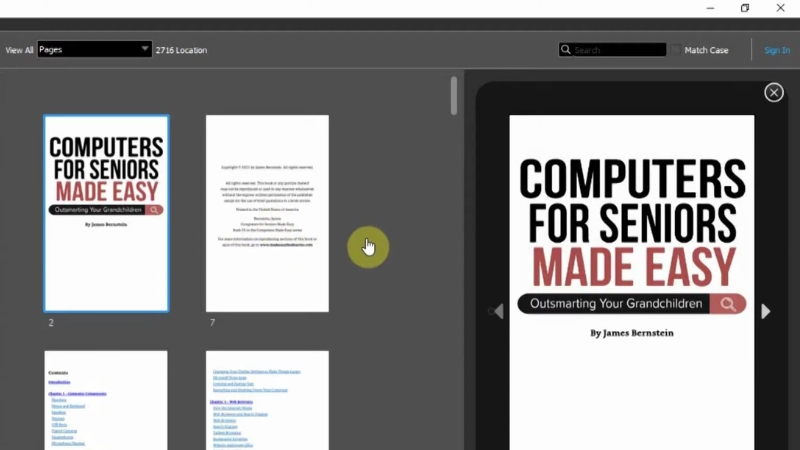
Supported paths include:
- Word DOC or DOCX, often used for text-heavy novels
- Kindle Create export, which can generate KPF or EPUB
- Clean EPUB files prepared for reflowable ebooks
KDP recommends validating your file with Kindle Previewer before upload.
Preview The Ebook
Use Online Previewer or Kindle Previewer to check:
- Chapter breaks
- Table of contents navigation
- Paragraph spacing
- Image placement
- Scene breaks
- Font substitutions
KDP also provides automated quality checks during this step.
Choose Release Timing
Ebooks can be published immediately or go on pre-order.
Important details:
- Pre-order dates are set in GMT
- Pre-orders can be scheduled up to 1 year in advance
- Canceling a pre-order by unpublishing can remove your ability to run pre-orders for 1 year
Step 3: Paperback Setup
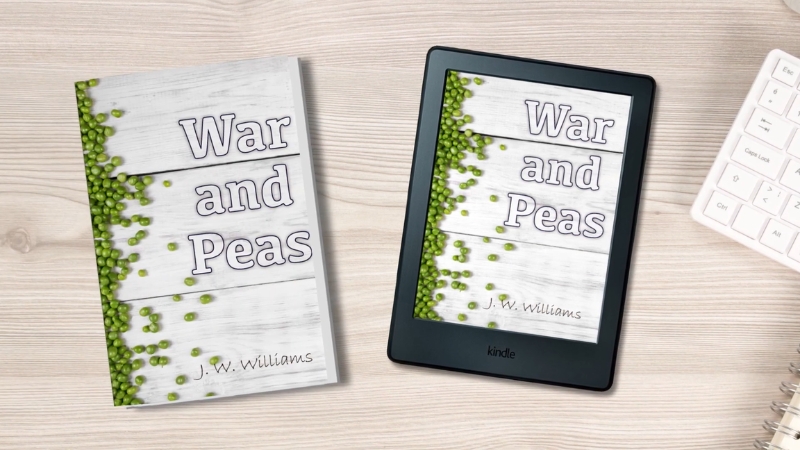
Paperback publishing involves physical specifications that cannot be guessed.
Start Paperback Setup
From Bookshelf, select Create, then Create paperback. Two files are mandatory:
- Interior manuscript file
- Full wrap cover file that includes the spine
Choose Print Options
Print options affect formatting, spine width, and printing cost.
KDP supports trim widths from 4 to 8.5 inches and trim heights from 6 to 11.69 inches. Page count ranges depend on specifications and can run from 24 to 830 pages in supported configurations.
Format The Interior
Upload a print-ready file. KDP also provides manuscript templates. Print Previewer scans the file and points out any blocking errors.
Create The Paperback Cover
Spine width is calculated from page count and paper type.
If your cover uses bleed, add 0.125 inches or 3.2 mm to the top, bottom, and outside edges.
Step 4: Pricing, Royalties, And The Real Math
Pricing on KDP decides whether your book quietly earns or slowly bleeds potential income, so it pays to slow down and run the numbers before locking anything in.
Kindle Ebook Royalties
Two royalty options:
Option
Royalty Structure
Notes
35%
35% of the list price, less VAT where applicable
Applies everywhere
70%
70% of the list price, less VAT, minus delivery cost
Only in eligible territories
The average delivery cost on the 70% option is about $0.06 per unit sold, and it varies by file size. Image-heavy files reduce net earnings. Customers outside 70% territories pay at 35% even if you selected 70%.
Paperback Royalties
Royalty formula:
(Royalty rate × list price) – printing cost = royalty
Example provided by KDP:
List price: $15
333-page regular trim paperback, black ink, sold in the US
Royalty: (0.60 × $15) – $5.00 = $4.00
Standard paperback royalty is typically 60%. Expanded Distribution pays 40% of effective list price, minus printing cost. Expanded Distribution pays on a longer timeline.
Hardcover Royalties
Hardcover royalty is 50% or 60%, depending on the marketplace and list price. Expanded Distribution is not available for hardcovers.
Printing Cost Formula
Fixed cost + (page count × per page cost) = printing cost
Printing cost depends on the marketplace, page count, trim size, and ink type. Bleed and cover finish do not change the printing cost.
Step 5: KDP Select and Kindle Unlimited
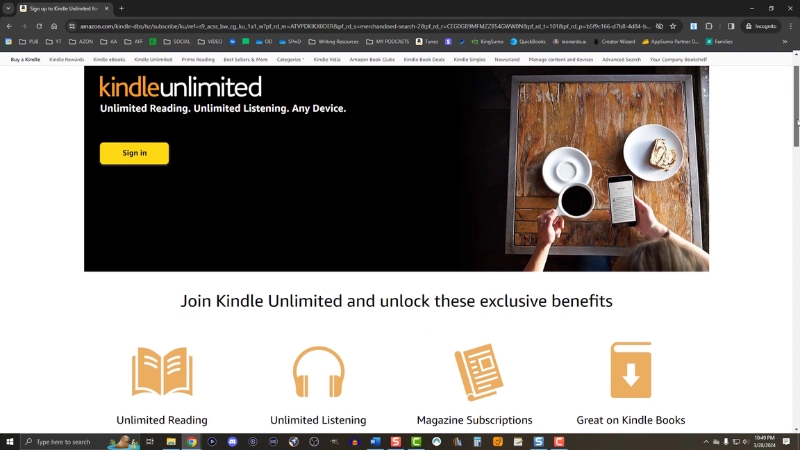
KDP Select is a 90-day optional enrollment for Kindle ebooks.
Requirements:
- You must hold exclusive rights
- The ebook must remain exclusive to the Kindle Store
- Public domain titles are not eligible
Enrollment includes Kindle Unlimited. KDP publishes a monthly “Total KDP Select Author Earnings” pool. October 2025 was listed at $64.6 million.
Select can boost page-read revenue and promotion eligibility. It also blocks wide distribution during the enrollment period.
Step 6: Review Timelines And Common Delays
KDP usually publishes within 24 to 72 hours. Delays often come from:
- Wrong content uploads
- Print formatting errors detected by Print Previewer
- Cover sizing and spine mismatches
Ebooks support pre-orders. Print books support scheduled release dates. Print listings stay hidden until release day, though author copies can be ordered once review completes.
Step 7: Link Ebook and Paperback Editions
Formats are linked into a single product page when metadata matches. Manual linking is available from the Bookshelf by selecting Link existing paperback or Link existing Kindle eBook.
Split listings scatter reviews and reduce conversions.
Step 8: ISBN Choices
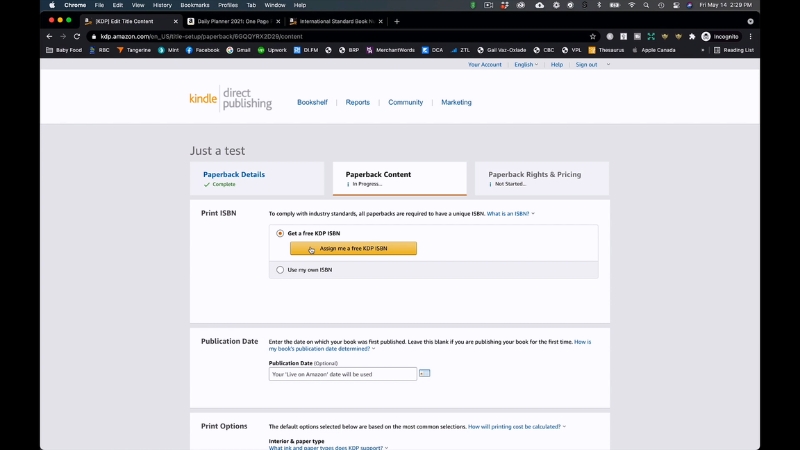
KDP supports:
- Free KDP ISBN
- Your own purchased ISBN
A free KDP ISBN can only be used on KDP and is registered by KDP through Bowker in the US. Choose your own ISBN if you want the same identifier across multiple platforms.
Step 9: Proof Copies And Author Copies
Author copies appear in your Bookshelf about 24 hours after your book goes live.
Key points:
- Sold at printing cost
- No royalties on proof or author copies
- Not shown in KDP reports
- Author’s price equals print cost multiplied by number of copies ordered
Ordering a copy often reveals margin issues, spine alignment problems, or layout flaws that do not appear on screen.
Step 10: Taxes And Payments
KDP requires tax information to comply with US reporting rules. With valid tax details, royalties are not subject to US withholding.
Royalties are paid monthly:
- About 60 days after the month of sale
- 90 days for Expanded Distribution
Direct deposit is recommended and often has no minimum payment threshold.
Step 11: Final Pre-Publish Checklist
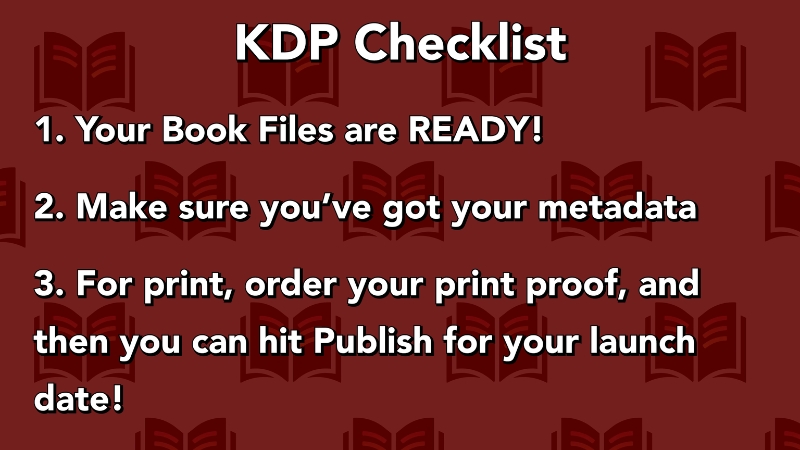
A tight pre-publish checklist prevents silent errors that delay release, break format linking, or quietly cut into royalties.
Kindle Ebook
- EPUB or KPF opens cleanly and navigates correctly
- Table of contents works in preview
- No missing headings
- Description matches the book’s real content
- Keywords and categories completed
- Pricing aligns with royalty option and file size considerations
Paperback
- Trim size, bleed, and margins match KDP rules
- Cover template and spine width match specs
- Print Previewer shows no blocking errors
- Pricing covers print cost and leaves profit
- ISBN choice is intentional
After publishing:
- Allow 24 to 72 hours for review
- Link formats if needed
- Order at least 1 author copy for inspection
Summary
@publishingprosofficial #amazonkdp #amazonkdpforbeginners #amazonkdptutorial #amazonkdptips ♬ original sound – Angelina&Chris | Amazon KDP
Publishing through KDP rewards preparation more than speed. When metadata matches your files, covers follow print math, and pricing is calculated instead of guessed, the platform runs quietly in your favor.
The dashboard may look friendly, yet it is a production system, not a writing app. Treat setup as part of the craft, and the book that reaches readers looks and pays the way it should.